Complete Nexus Market Access Guide
Everything You Need to Access and Use Nexus Safely
This complete guide walks you through every step of accessing Nexus Market, from installing Tor Browser to making your first purchase. Follow these instructions carefully for secure, anonymous marketplace access.
Before You Begin
Successfully accessing Nexus Market requires preparation and understanding of basic privacy tools. Before starting this guide, ensure you have a computer running Windows, macOS, or Linux with a stable internet connection. Mobile devices are not recommended for darknet marketplace access due to security limitations.
Allocate at least 30-45 minutes for your first access attempt. Rushing through security steps increases risk and may lead to mistakes. Read this entire guide before beginning to understand the full process. Taking time to learn proper procedures protects your privacy and security.
Consider your network environment carefully. Avoid using workplace, school, or public WiFi networks for marketplace access. These networks often have monitoring systems that could compromise your privacy. Home networks with strong passwords provide better security, though VPN services add another layer of protection.
📋 What You'll Need
- Computer with internet connection
- 30-45 minutes of uninterrupted time
- Email address for PGP key generation
- Secure method to record passwords offline
- Monero cryptocurrency for purchases
Step 1: Download and Install Tor Browser
Tor Browser is the only secure method to access .onion sites like Nexus Market. Standard browsers like Chrome, Firefox, and Safari cannot access the Tor network, making Tor Browser absolutely essential. The browser routes your connection through multiple encrypted relay servers, masking your IP address and location from websites you visit.
Visit the official Tor Project website at www.torproject.org to download Tor Browser. Never download Tor from third-party websites, file sharing networks, or torrents—these sources may contain malicious modified versions. Only the official Tor Project website guarantees safe downloads.
Click the large "Download Tor Browser" button on the homepage. The website automatically detects your operating system and offers the correct version. If the detection is wrong, use the dropdown menu to select your operating system manually. The download file is approximately 80-100 MB depending on your platform.
After downloading, run the installer. Windows users will see a setup wizard guiding through installation. Mac users should drag the Tor Browser application to their Applications folder. Linux users may need to extract the downloaded archive and run the start script. Installation takes just a few minutes on modern computers.
Launch Tor Browser after installation completes. The first startup takes longer than subsequent launches as Tor establishes initial connections to the network. Click "Connect" on the welcome screen to begin connecting to Tor. The connection process typically completes within 30 seconds on normal internet connections.
Once connected, Tor Browser looks similar to Firefox with a purple color scheme. Test your connection by visiting check.torproject.org—you should see a message confirming successful Tor network connection. If the page shows you're not using Tor, close the browser completely and restart it.
⚠️ Important Tor Browser Settings
Set Tor Browser security level to "Safest" for maximum protection. Access this setting by clicking the shield icon near the address bar. The safest setting disables JavaScript by default, preventing many attack vectors. Some websites may not function fully, but security takes priority over convenience.
Step 2: Accessing Nexus Market
With Tor Browser running, you're ready to access Nexus Market. The marketplace operates exclusively on .onion domains only accessible through the Tor network. Nexus maintains multiple mirror sites to ensure availability even during DDoS attacks or server issues affecting individual mirrors.
Navigate to the official links page on this portal to get verified Nexus Market onion addresses. All links published here are verified by the Nexus administration team and regularly updated. Never use marketplace links from search engines, forums, Reddit, or social media—these sources frequently contain phishing links designed to steal your credentials.
Choose any mirror from the list and click the "Copy Link" button. The full .onion URL is copied to your clipboard. Switch to Tor Browser and paste the URL directly into the address bar. Press Enter and wait for the connection to establish. .onion sites often load more slowly than regular websites due to Tor network routing.
The Nexus homepage should appear within 10-30 seconds depending on network conditions. You'll see the marketplace logo, featured listings, and navigation menu. Look for your security phrase if you've registered previously—this phrase proves you're on the genuine Nexus site rather than a phishing copy.
If a mirror fails to load, don't panic. Try a different mirror from the official list. Individual mirrors occasionally go offline for maintenance or during attacks. The distributed mirror system ensures at least several mirrors remain accessible at all times. Bookmark working mirrors in Tor Browser for future quick access.
Step 3: Setting Up PGP Encryption
PGP (Pretty Good Privacy) encryption is mandatory for Nexus Market accounts. This cryptographic system encrypts messages between you and vendors, ensuring private communications even marketplace administrators cannot read. Every account requires an associated PGP public key during registration.
Before creating your Nexus account, you need to generate a PGP keypair. Download and install GPG (GNU Privacy Guard), a free open-source PGP implementation. Windows users should download Gpg4win from gpg4win.org. Mac users can install GPG Suite from gpgtools.org. Linux users typically have GPG pre-installed.
After installing GPG software, generate your keypair. Open the key management interface (called Kleopatra on Windows, GPG Keychain on Mac, or command line on Linux). Select "New Key Pair" or similar option. You'll be asked to provide a name and email address—use pseudonyms rather than real information for darknet marketplace keys.
Choose RSA encryption with 4096-bit key length for maximum security. Set an expiration date 1-2 years in the future. Keys without expiration dates are poor security practice. Create a strong passphrase protecting your private key—this passphrase is required whenever decrypting messages or signing content.
The key generation process takes a minute or two depending on computer speed. Once complete, you'll have two keys: a public key you share with others, and a private key you must protect carefully. Export your public key to a text file by right-clicking it and selecting "Export". This public key will be uploaded to Nexus during registration.
Back up your private key to external storage like a USB drive. Store the backup in a secure location separate from your computer. If your computer fails or is stolen, you'll need the backup to recover account access. Never upload your private key anywhere or share it with anyone.
Step 4: Creating Your Nexus Account
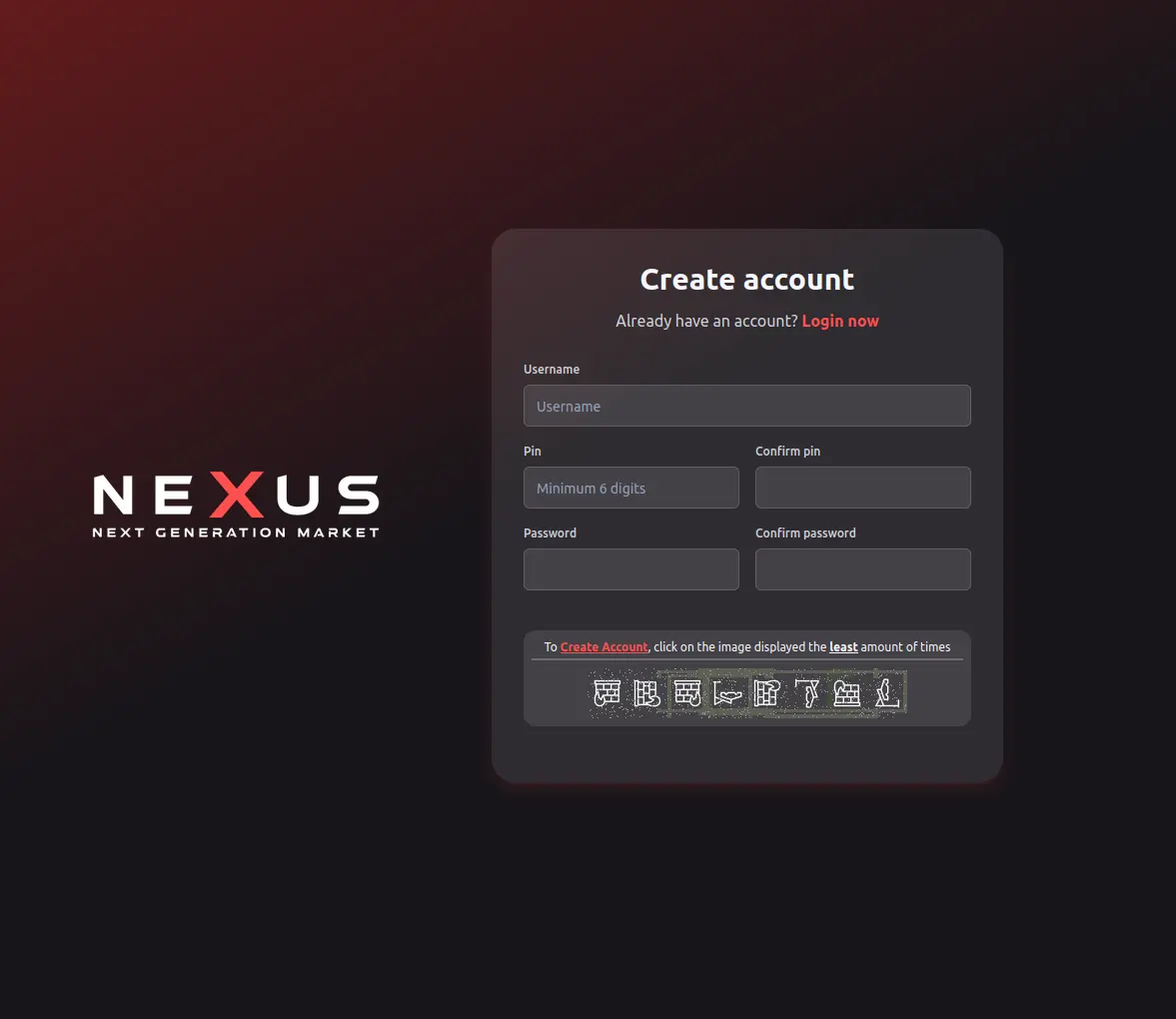
With Tor Browser running and PGP keys generated, you're ready to register on Nexus Market. Navigate to any working Nexus mirror using the official links. On the homepage, locate the "Register" or "Sign Up" button typically found in the top navigation bar or center of the page.
Click the registration button to access the signup form. Choose a username that doesn't reveal your identity or connect to other online accounts. Avoid using the same username across multiple marketplaces. Your username is publicly visible on the marketplace, so maintaining separation between identities is important for privacy.
Create a strong unique password for your Nexus account. Use at least 16 characters mixing uppercase, lowercase, numbers, and symbols. Password managers can generate and store complex passwords securely. Never reuse passwords from other sites—if one service is compromised, reused passwords allow attackers to access other accounts.
Write your password on paper and store it securely offline. Password recovery is impossible on Nexus due to zero-knowledge security architecture. If you lose your password and cannot access your PGP private key, your account cannot be recovered. This may seem inconvenient but protects against password reset attacks.
The registration form includes a field for your PGP public key. Open the public key file you exported earlier, copy the entire contents (including the "BEGIN PGP PUBLIC KEY BLOCK" and "END PGP PUBLIC KEY BLOCK" lines), and paste it into the PGP key field on the registration form.
After completing all fields, submit the registration form. The system validates your username availability and PGP key format. If errors occur, read the error messages carefully and correct the indicated problems. Successful registration redirects you to a page displaying your security phrase—record this phrase immediately.
Your security phrase appears on the login page every time you access Nexus. This phrase proves you're on the genuine marketplace rather than a phishing site. Write down your security phrase and store it with your password. If the phrase doesn't match what you recorded, you're on a fake site attempting to steal your credentials.
Step 5: Making Your First Purchase
After account creation, you can browse Nexus Market listings without depositing funds. Take time to explore categories, read vendor profiles, and examine product listings. Understanding the marketplace layout before making purchases helps you navigate efficiently and identify quality vendors.
Search for products using the search bar or browse by category. Click on listings to view detailed product descriptions, vendor information, and customer reviews. Pay attention to vendor ratings, review count, and account age. Established vendors with hundreds of positive reviews present lower risk than new accounts with limited feedback.
When you find a product to purchase, read the listing carefully. Note the price, shipping options, and any special instructions. Some vendors require buyers to encrypt their shipping address with the vendor's PGP key—check listing details for such requirements. Click "Add to Cart" or similar button to begin the purchase process.
Before completing checkout, you need Monero cryptocurrency in your Nexus wallet. Click your account menu and select "Deposit" or "Wallet" to access your deposit address. Copy this address carefully—sending Monero to the wrong address results in permanent loss of funds. Use the "Copy" button rather than typing the address manually.
Send Monero from your personal wallet to your Nexus deposit address. Most transactions confirm within 10-20 minutes. The Nexus wallet page updates automatically as confirmations occur. Wait for full confirmation before attempting purchases. Some vendors require multiple confirmations before accepting orders.
With Monero in your Nexus wallet, return to your cart and complete checkout. Enter your shipping address encrypted with the vendor's PGP key if required. Review order details carefully before final submission. After submitting, the order enters escrow and your Monero is locked until you finalize or dispute the transaction.
Communicate with vendors through the encrypted messaging system if you have questions. All messages automatically encrypt using PGP, protecting communication contents. Vendors typically respond within 24 hours. After receiving your order and confirming satisfaction, return to the order page and finalize the transaction to release funds to the vendor.
Security Best Practices
Following security best practices significantly reduces risks when using Nexus Market. Never access the marketplace without Tor Browser—using regular browsers with VPNs does not provide adequate anonymity. Only Tor Browser properly routes traffic through the anonymity network protecting your identity.
Keep Tor Browser security settings at maximum (Safest mode). This disables JavaScript by default, preventing many types of attacks. If a site requires JavaScript, carefully evaluate whether you trust it before temporarily allowing scripts. Marketplace core functions work fine without JavaScript on Nexus.
Verify your security phrase on every login. Phishing sites designed to look like Nexus cannot display your correct security phrase. If the phrase is missing or wrong, close the browser immediately without entering credentials. Report phishing sites to legitimate Nexus administrators through support channels.
Never share personal information with vendors or in marketplace messages. Use pseudonyms and encrypted communications for everything. Vendors who request phone numbers, email addresses, or social media contacts are likely scammers. Legitimate vendors only communicate through marketplace messaging.
Start with small orders when trying new vendors. Even highly-rated vendors can have issues or turn scam. Testing with minimal financial risk protects you while evaluating vendor reliability. Gradually increase order sizes as vendors prove trustworthy through multiple successful transactions.
Keep your Monero wallet balances minimal. Only deposit amounts needed for immediate purchases. Marketplaces can be seized or shut down without warning, resulting in lost funds. Maintaining the majority of your cryptocurrency in personal wallets under your control minimizes this risk significantly.
Troubleshooting Common Issues
Connection problems are the most common issue users face. If Nexus mirrors won't load, first verify your Tor connection is working by visiting other .onion sites or check.torproject.org. If all .onion sites fail to load, restart Tor Browser and try connecting again.
Slow loading speeds are normal on Tor due to multiple relay hops encrypting your traffic. Be patient and allow 15-30 seconds for pages to load. If pages timeout consistently, try different Nexus mirrors. Some mirrors may be experiencing high traffic or technical issues while others work fine.
Login failures usually result from incorrect passwords or username typos. Verify you're entering credentials exactly as registered. Passwords are case-sensitive. If you cannot login despite correct credentials, your account may be locked due to multiple failed attempts. Wait an hour and try again.
Deposit transactions not showing in your wallet may simply need more blockchain confirmations. Monero transactions require 10 confirmations before funds become spendable. Check your sending wallet for transaction status. If the transaction shows as sent but doesn't appear after an hour, contact marketplace support with transaction details.
PGP encryption problems often stem from incorrect public key copying. Ensure you copied the vendor's entire public key including header and footer lines. Test PGP encryption using online tools before attempting encryption for marketplace messages. Practice with test messages until comfortable with the encryption process.
Ready to Access Nexus Market?
You now have all the knowledge needed to safely access and use Nexus Market. Get started by visiting any official mirror.
View Official Onion Links